Features
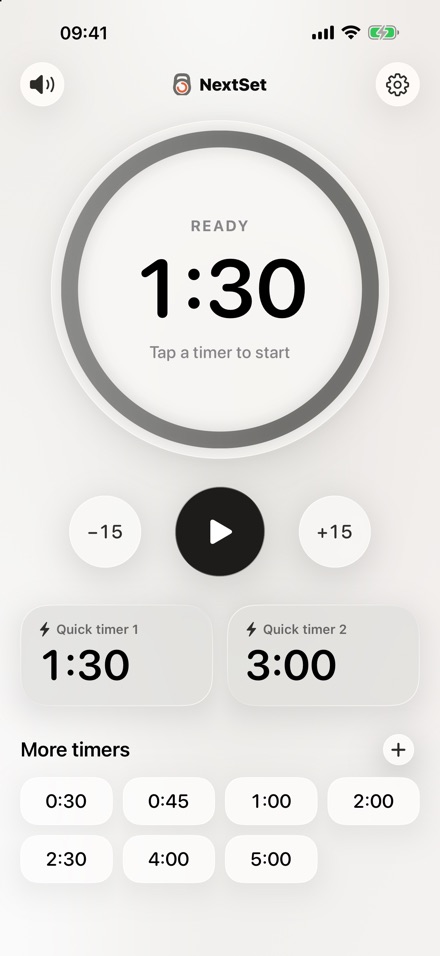
- One tap to restOne or two big quick timers on the start screen, more timers below. Tap another timer during a rest to switch.
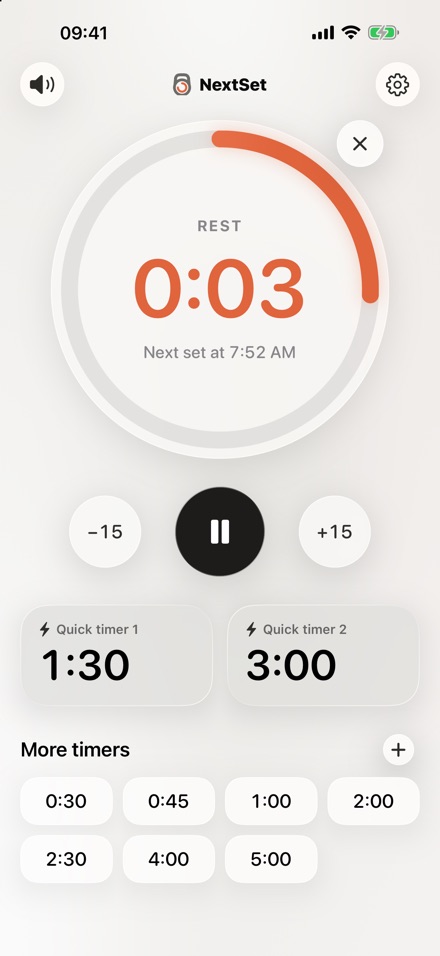
- Countdown you can feelHaptics and sounds in the last 3, 5 or 10 seconds. Sounds play over your music and even in silent mode.
- Made for Apple WatchQuick timers right on the watch, a full-screen ring, and taps on your wrist even with your arm down.
- Always in viewLive Activity on the Lock Screen and in the Dynamic Island, plus a notification when your rest is over.
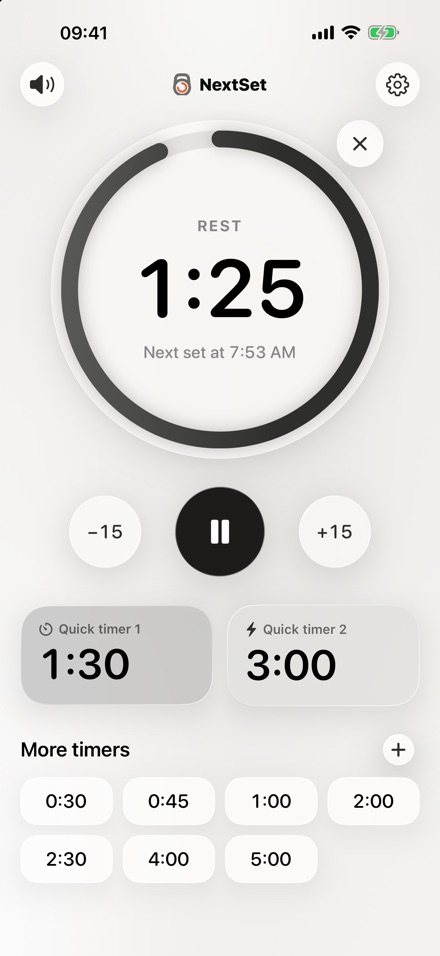
- Adjust on the fly±15 seconds, pause, end early. After the rest, “GO!” shows how long you’ve gone over, and “Repeat rest” starts it again.
- Siri & ShortcutsStart or end a rest with Siri, the Shortcuts app or the Action button.
Support
How do I start a rest?
Tap one of the big quick timers or any timer below them. During a rest, tap another timer to switch straight to it.
How do I add, rename or delete timers?
Tap + to add a timer. Long-press a timer to rename or delete it. In Settings you can also choose whether you want one or two quick timers.
Do my timers sync between iPhone and Apple Watch?
Yes. Timers you add or change on one device automatically appear on the other one.
Why do I hear the countdown in silent mode?
So you don’t miss the end of your rest at the gym. Your music is lowered briefly while a sound plays. You can turn the sounds off in Settings or with the speaker button on the start screen.
I don’t get a notification when my rest is over.
Make sure notifications are allowed for NextSet in the iOS Settings app under Notifications, and that “Notify when rest is over” is turned on in NextSet’s settings.
Which Siri phrases can I use?
For example “Start rest in NextSet” or “End rest in NextSet”. In the Shortcuts app and for the Action button you’ll find the actions “Start Quick Timer”, “Start Rest Timer” and “End Rest”.
Does NextSet collect any data?
No. There are no accounts, no tracking and no ads. Your timers and settings stay on your devices. Details are in the privacy policy.
Found a bug or have an idea? Send an email to mario@kernich.de. Please mention your iPhone or Apple Watch model and the iOS or watchOS version.